Master Inventory Control
Syncing...
Image SKU ID Name Price (GBP) Available Actions
Audit Terminal

Compare Inbound vs London Brain.

Audit Buffer Empty.
000
000
000
000
Showing 0 entries
Timestamp User SKU Action Fields Changed
Click History in the sidebar to load entries.

Registry Master — Help

A short guide to the sidebar, creating and editing products, inventory, and uploading images and documents.

Download What's New (PDF) — media uploads, inventory, and consolidating Document Image Manager into Registry Master.

1. Overview

The main screen is your Master Registry table: product image, SKU, name, price, available stock, and an Actions menu per row.

  • Single-click a row to edit that SKU.
  • Double-click a row to open its change history.
  • Click the Available number to jump straight to Inventory for that SKU.
  • Use the list button in Actions to open Sync, Push, Inventory, Media, Edit, or Delete.
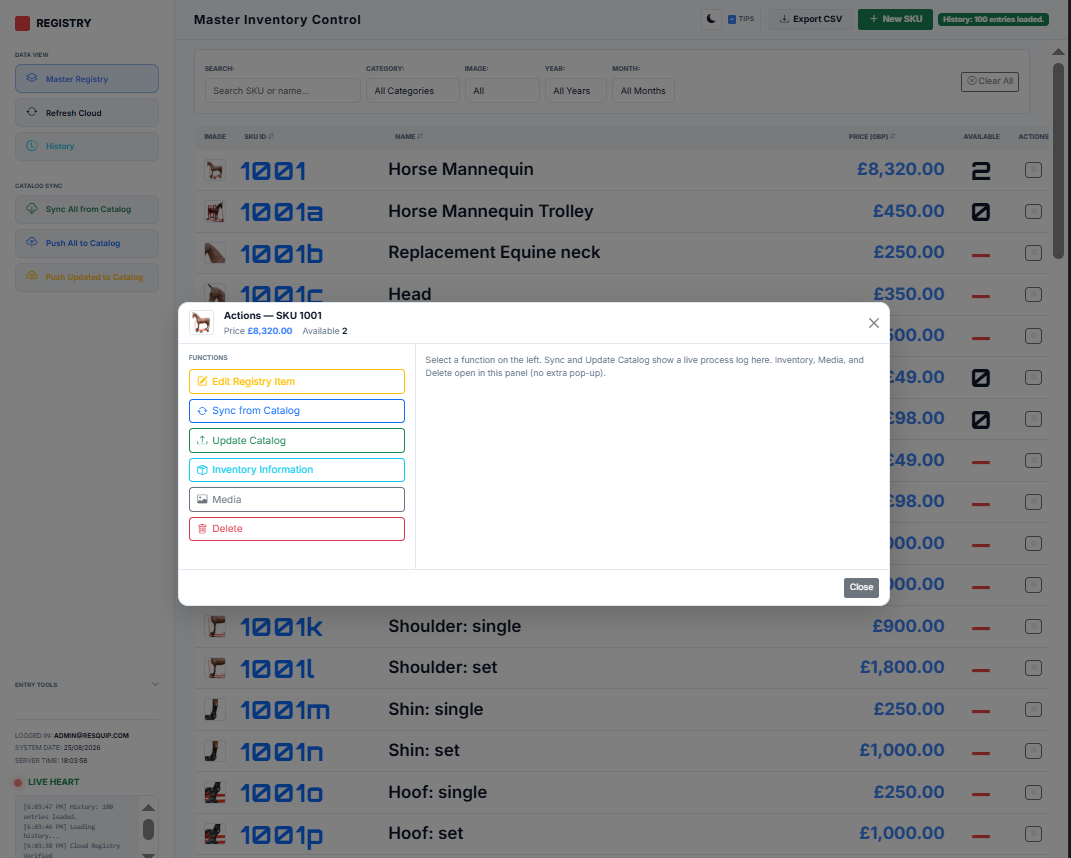
Registry Master main screen with Actions panel open
Main registry table and the Actions panel for a selected SKU.
2. Sidebar menu

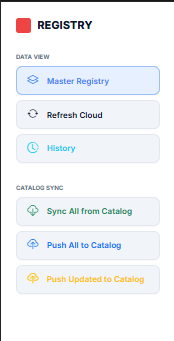
Data View — Master Registry (this table), Refresh Cloud (download the latest list), and History (who changed what).

Catalog Sync — pull photos/status from the shop catalog, or push registry data to the catalog. Open this Help page from the same section.

Sidebar Data View and Catalog Sync buttons
Left menu: Data View and Catalog Sync.
3. Create a new SKU
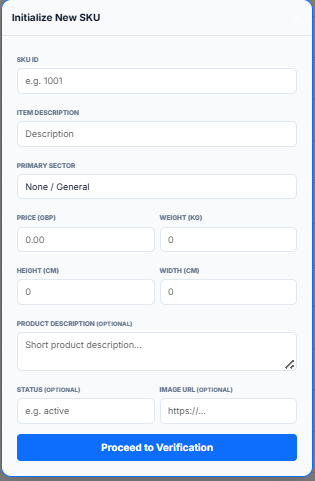
  1. Click + New SKU in the top header.
  2. Fill the shaded required fields: SKU ID, Item Description, and Price.
  3. Optional: sector, weight, size, description, status, image URL.
  4. Click Create New Item, check the summary, then confirm.

SKU rule: at least 4 digits, at most 3 letters, and it must not already exist.

Initialize New SKU form
New SKU form — required fields are highlighted.
4. Edit a registry item

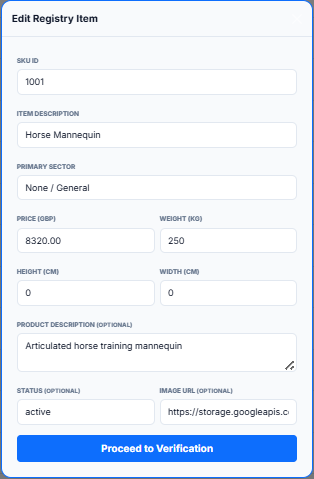
Open edit by single-clicking the row, or from Actions → Edit Registry Item. SKU ID stays locked; update name, price, sizes, and other fields, then confirm.

Edit Registry Item form
Edit form for an existing SKU.
5. Row Actions panel

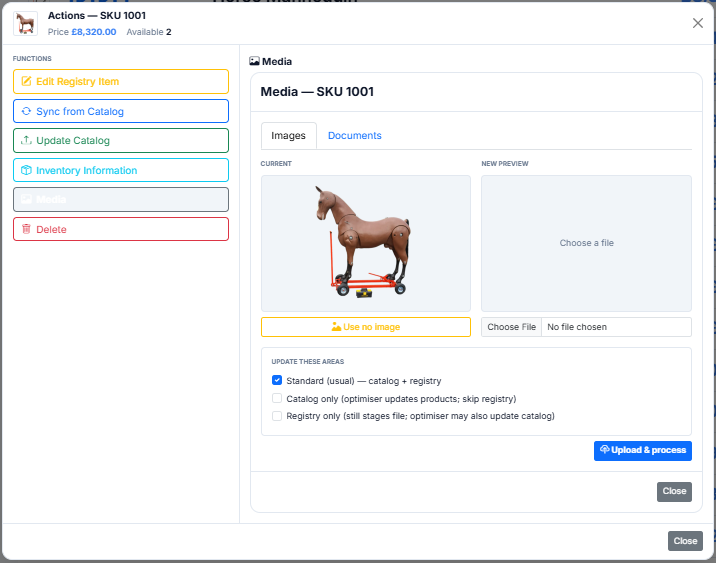
Open the list icon on a row. The header shows the product thumbnail, price, and available quantity. Left-hand functions:

  • Edit Registry Item — open the edit form.
  • Sync from Catalog — pull image URL and status from the shop into this row.
  • Update Catalog — push this row’s details to the shop.
  • Inventory Information — stock levels and dispatch records.
  • Media — upload images and documents (see below).
  • Delete — permanently remove the SKU (exports first).
6. How to upload images
  1. Open Actions for the SKU → choose Media.
  2. Stay on the Images tab.
  3. Review Current image (or use Use no image to clear).
  4. Under New preview, choose a file from your computer.
  5. Pick where to update: Standard (catalog + registry), Catalog only, or Registry only.
  6. Click Upload & process and wait for the optimiser to finish.
Media Images tab with current image and upload controls
Media → Images: current photo, new file, update targets, Upload & process.
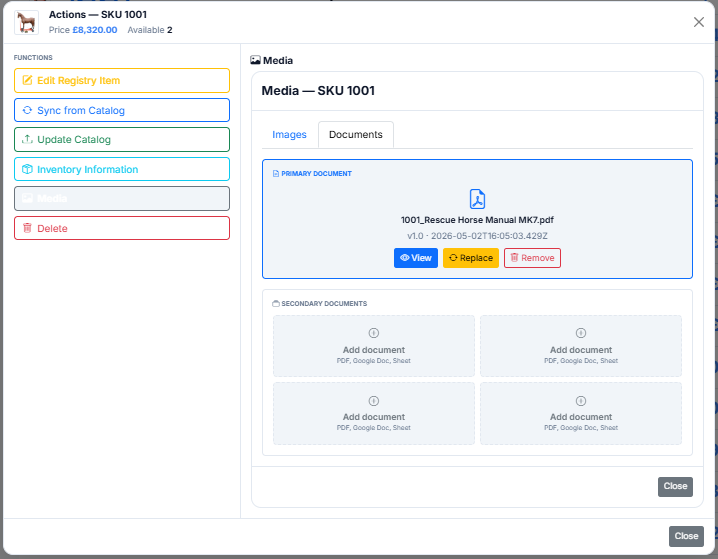
7. How to upload documents
  1. Open Actions → Media → Documents tab.
  2. Primary document — the main manual/spec for the SKU. Use View, Replace, or Remove.
  3. Secondary documents — up to four extra files (PDF, Google Doc, Sheet). Click a dashed Add document slot to upload.
Media Documents tab with primary PDF and secondary slots
Media → Documents: one primary file plus four secondary slots.
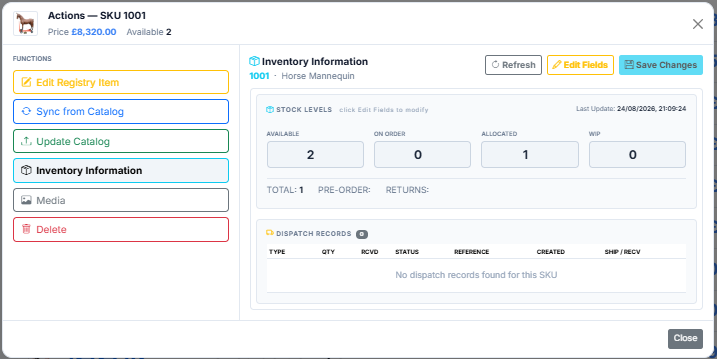
8. Inventory information

From Actions → Inventory Information (or click Available on the table):

  • View Available, On Order, Allocated, WIP.
  • Click Edit Fields to change values, then Save Changes.
  • Use Refresh to reload from stock data.
  • Dispatch records for the SKU appear in the lower table.
Inventory Information panel with stock levels
Inventory panel: stock levels and dispatch records.
9. After an update

When a new build is deployed, Registry Master publishes a new version.json. After you log in, the app checks that file automatically (and again every 30 minutes).

  • A yellow Update available banner appears across the top of the main area.
  • Click Reload now to load the new files (save open forms first — unsaved work may be lost).
  • Click Later to dismiss the banner for this browser session.
  • Or use sidebar Check for updates any time to compare your copy to the live version.
Hard refresh (Chrome) if the page still looks old

Sometimes the browser keeps cached scripts or styles. A normal refresh is often not enough.

  1. Press F12 to open Developer Tools (leave it open).
  2. Right-click the circular refresh icon in the address bar (left of the URL).
  3. Choose Empty cache and hard reload.
  4. Close Developer Tools when finished.

On a Mac use Cmd+Option+I instead of F12 if needed.

Tip: turn on Tips in the header to see short explanations when you hover sidebar buttons.